
Download SuperBrowse – Fast, Free, Secure Windows Web Browser
Overview of SuperBrowse
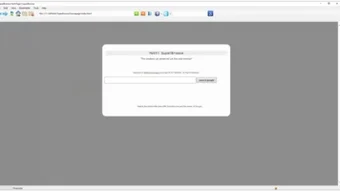
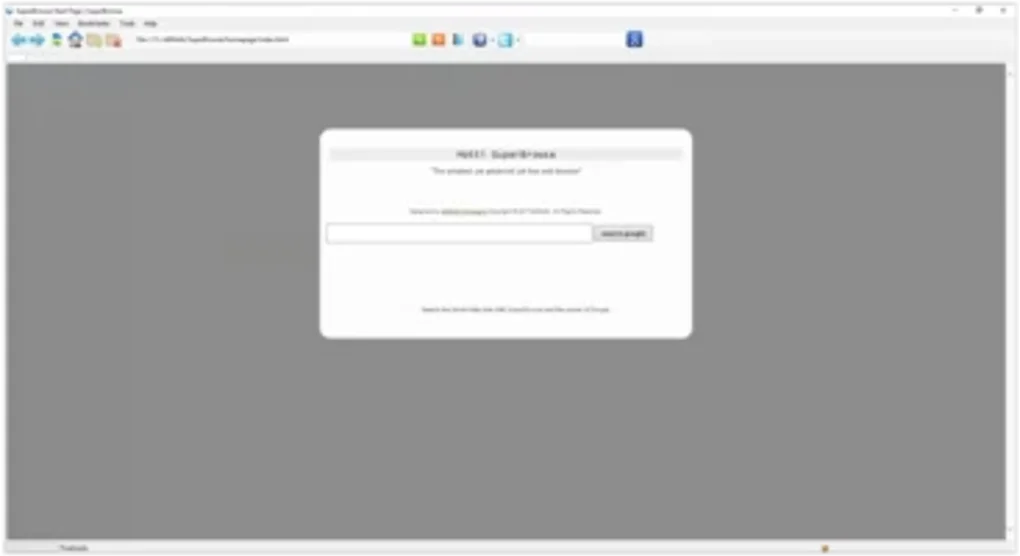
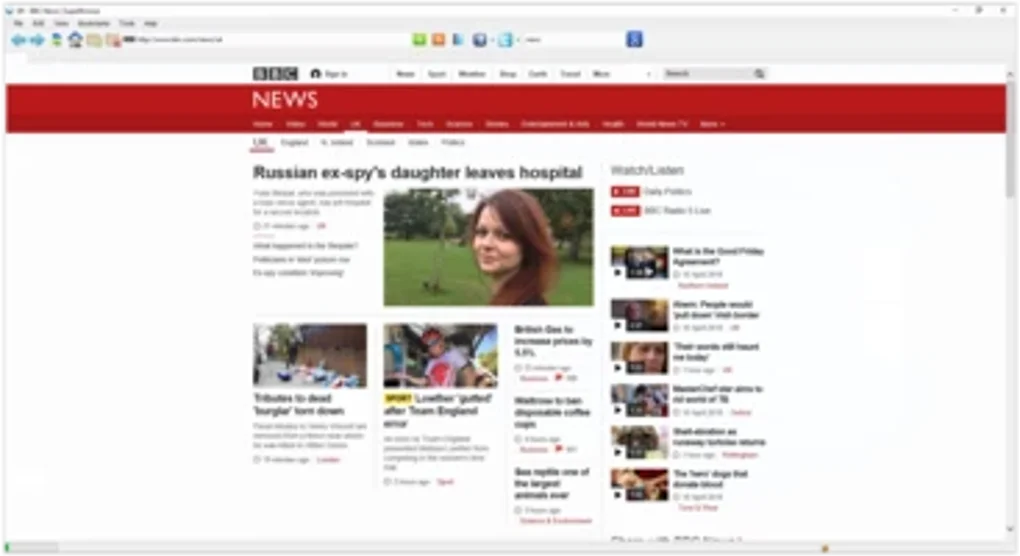
SuperBrowse is a functional web browser built specifically for Windows users who value speed, simplicity, and reliability over flashy design. Developed by allMotti, the application delivers a familiar toolbar‑centric interface that mirrors the ease of use found in legacy browsers like Internet Explorer while incorporating modern conveniences such as tab management, built‑in PDF viewing, and quick access to popular social networks. The always‑visible toolbar eliminates the need to hunt for navigation controls, letting you focus on the content you care about. SuperBrowse supports any search engine you prefer, allowing you to type queries directly into the address bar and get instant results. While the visual design is intentionally minimal, the underlying engine is optimized for low‑resource PCs, making it an ideal choice for older hardware, corporate environments, or anyone who simply wants a no‑nonsense browsing experience.
The browser’s core philosophy is “function before form.” That means you won’t be distracted by excessive animations or intrusive extensions. Instead, you’ll find a clean layout, well‑placed tab controls, and a straightforward settings menu. PDF files open directly within the browser window, eliminating the need for a separate viewer. Social shortcuts give you one‑click entry to Facebook, Twitter, Instagram, and more, which is especially handy for users who spend a lot of time on those platforms. Overall, SuperBrowse strikes a balance between the reliability of classic browsers and the essential features modern users expect, all while staying lightweight and secure.
Key Features That Make SuperBrowse Stand Out
- Always‑Visible Toolbar: The navigation bar stays fixed at the top, providing instant access to back, forward, refresh, and home buttons without hidden menus.
- Integrated PDF Viewer: Open PDF documents directly in a tab, save them, or print without leaving the browser.
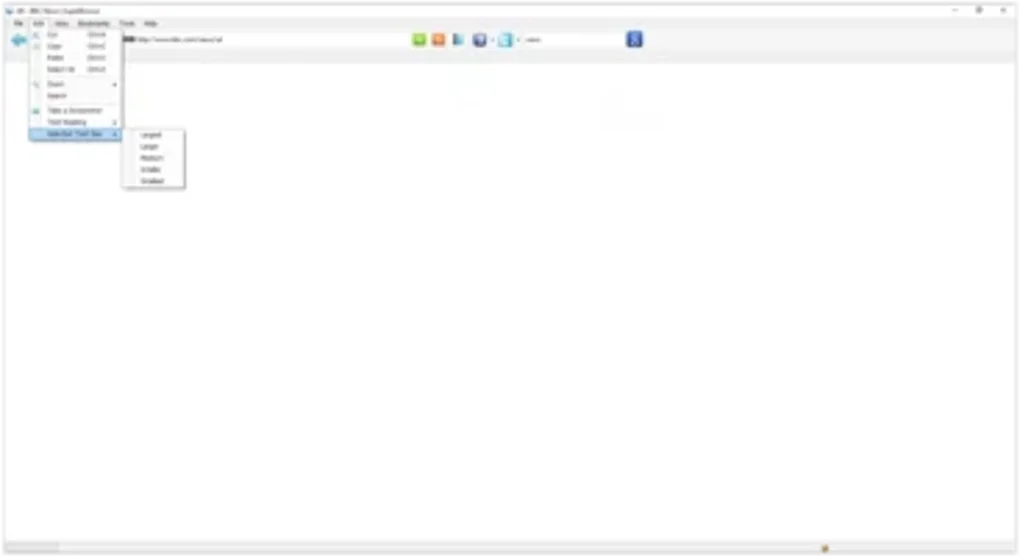
- Tab Management: Open, close, and rearrange tabs with drag‑and‑drop functionality; right‑click for “Duplicate Tab” or “Pin Tab” options.
- Search Engine Flexibility: Set any search engine as the default; the address bar doubles as a quick search field.
- Social Network Shortcuts: One‑click icons for Facebook, Twitter, Instagram, LinkedIn, and more, customizable via the settings panel.
- Lightweight Architecture: Optimized for low RAM usage, making it suitable for older Windows PCs and laptops with limited resources.
- Secure Browsing: Built‑in protection against malicious sites, with optional HTTPS‑only mode and automatic updates.
- Customizable Themes: Although the default design is minimal, users can choose from a handful of light and dark themes.
- Bookmark Sync (Beta): Sync bookmarks across multiple Windows installations using a simple cloud token.
- Keyboard Shortcuts: Power users can navigate with shortcuts like Ctrl+T (new tab), Ctrl+W (close tab), and Ctrl+Shift+N (incognito mode).
Each of these features has been crafted to enhance everyday browsing without overwhelming the user. The always‑visible toolbar, for example, reduces the learning curve for newcomers while giving power users a consistent workspace. Integrated PDF support means you won’t need to juggle between separate applications, which saves time and keeps your workflow streamlined.
Tab management in SuperBrowse is intuitive: you can quickly duplicate a tab to compare two pages side‑by‑side or pin frequently visited sites for easy access. The social shortcuts are fully configurable—drag a new icon onto the toolbar, and you’re ready to launch your favorite platform in a single click. Security is baked in, with automatic updates that keep the browser patched against the latest vulnerabilities, and an optional HTTPS‑only mode that forces encrypted connections whenever possible.
All these capabilities combine to create a browser that feels both modern and dependable.
Installation, Usage Instructions, and Compatibility
System Requirements
SuperBrowse runs on Windows 7, Windows 8, Windows 10, and Windows 11 (both 32‑bit and 64‑bit). The installer requires at least 200 MB of free disk space and a minimum of 2 GB RAM for optimal performance. Because the application is built with native Windows APIs, you won’t need additional runtimes like .NET or Java.
Step‑by‑Step Installation
- Visit the official allMotti download page and click the Download SuperBrowse button. The file is a small
.exeinstaller (approximately 12 MB). - When the download completes, double‑click the installer. Windows will prompt you to confirm that you want to run the file; click Yes.
- The setup wizard appears. Choose your preferred language, accept the license agreement, and click Next.
- Select the installation folder (default is
C:\Program Files\SuperBrowse) and click Install. The process usually finishes within a minute. - After installation, you can launch SuperBrowse from the Start menu or by clicking the desktop shortcut.
First‑Time Launch and Basic Navigation
When you open SuperBrowse for the first time, a welcome screen offers a quick tour of the toolbar and key shortcuts. You can skip the tour if you prefer to explore on your own. The address bar sits at the top center; type any URL or search term and press Enter. To open a new tab, press Ctrl+T or click the + icon next to the existing tabs. Right‑click a tab for options like “Close Other Tabs” or “Reload All Tabs.” The built‑in PDF viewer activates automatically when you click a link to a PDF file; you can then zoom, print, or download the document using the toolbar that appears within the PDF tab.
Updating and Maintaining Security
SuperBrowse includes an automatic update checker that runs every 24 hours. When a new version is available, a discreet notification appears in the lower‑right corner. Clicking the notification launches the updater, which downloads and installs the patch without requiring administrator rights (unless the installation directory is protected). Keeping the browser up to date ensures you benefit from the latest security patches, performance improvements, and feature additions.
Pros, Cons, and Frequently Asked Questions
Pros
- Lightweight and fast – ideal for older Windows PCs.
- Always‑visible toolbar simplifies navigation.
- Integrated PDF viewer eliminates the need for extra software.
- Customizable social shortcuts for quick access.
- Secure by default with automatic updates and HTTPS‑only mode.
- Supports all major search engines and offers flexible default settings.
Cons
- Lacks extensive extension ecosystem compared to Chrome or Firefox.
- Minimalist design may feel too plain for users who enjoy heavy visual customizations.
- Bookmark sync is still in beta and requires a manual token.
- No native mobile version; Windows‑only.
- Advanced developer tools are limited.
FAQ – Your SuperBrowse Questions Answered
Is SuperBrowse completely free to use?
Yes, SuperBrowse is 100 % free for personal use. There are no hidden fees, subscription plans, or paid upgrades. All core features, including the PDF viewer and social shortcuts, are available at no cost.
Can I import bookmarks from Chrome or Firefox?
SuperBrowse includes an import wizard that can read HTML bookmark files exported from Chrome, Firefox, or Edge. Simply go to Settings → Import/Export and select the file you wish to import.
Does SuperBrowse support extensions or add‑ons?
At present, SuperBrowse does not support third‑party extensions. The development team focuses on a streamlined, secure core experience. However, a limited set of built‑in tools (ad blocker, dark mode, password manager) are planned for future releases.
How does SuperBrowse handle privacy and data collection?
SuperBrowse collects only anonymous usage statistics to improve performance and security. No personal browsing history, passwords, or form data are sent to external servers unless you enable the optional cloud sync for bookmarks.
Is there a way to run SuperBrowse in incognito or private mode?
Yes, you can open a private window by pressing Ctrl+Shift+N or selecting “New Private Window” from the File menu. In this mode, no browsing history, cookies, or temporary files are stored after the session ends.
Conclusion – Should You Download SuperBrowse?
SuperBrowse fills a niche that many modern browsers have overlooked: a fast, secure, and uncomplicated web experience for Windows users who don’t need a sprawling extension marketplace. Its always‑visible toolbar, built‑in PDF reader, and social shortcuts make daily navigation effortless, while the lightweight engine ensures smooth performance even on legacy machines. If you value security updates, a clutter‑free interface, and the ability to keep your browsing data private, SuperBrowse is a compelling free alternative to Chrome or Edge. The primary trade‑off is the lack of a robust add‑on ecosystem and a more minimalist visual design, which may not satisfy power users who love heavy customization.
Overall, SuperBrowse delivers on its promise of functional simplicity. It’s particularly well‑suited for corporate environments, educational institutions, or anyone with older hardware that struggles with resource‑hungry browsers. The free price tag, combined with regular security patches, makes it a low‑risk, high‑reward addition to your Windows toolkit. Ready to give it a try? Click the button below to download the latest version and start browsing with confidence.







